
Set up Apollo Integration
step by step
This guide walks you from installing the app to your first automatic sync. Follow the steps in order — the whole process takes about 15 minutes.
Before you start
- A monday.com account with admin access to the board you want to sync, or select a template from the app
- An Apollo.io account
Setup guide:
7 steps
Install from monday.com Marketplace
Open the monday.com Marketplace and search for "Apollo Integration". Click Install and select your workspace. The app will appear as a board view — open any Contacts, Accounts, or Deals board and add it from the views sidebar.
Connect Apollo via OAuth
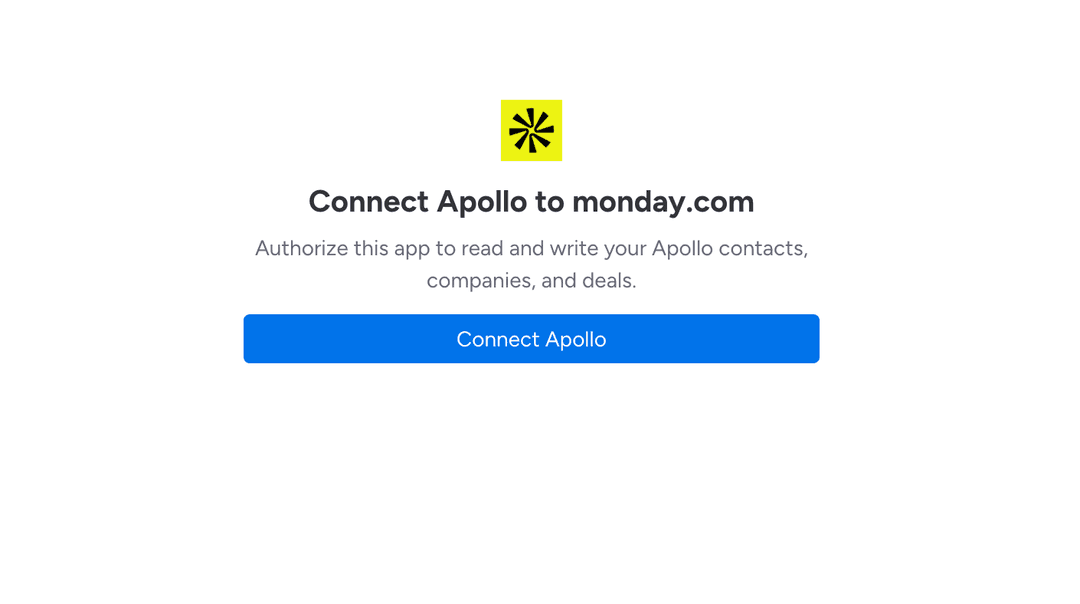
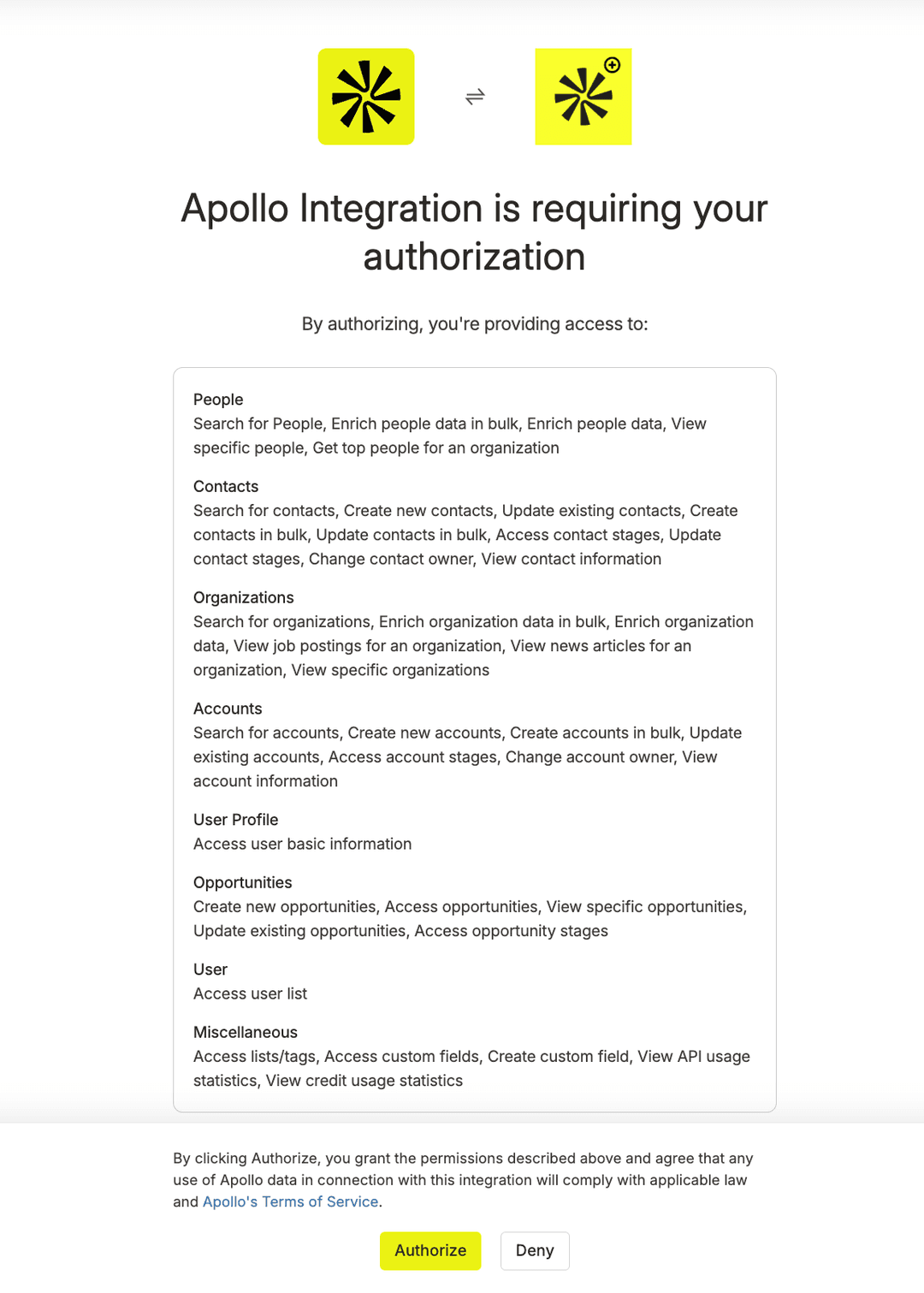
Click "Connect Apollo". A secure OAuth popup opens asking you to authorize Apollo Integration to read and write your Apollo contacts, companies, and deals. Review the requested permissions and click Authorize — the popup closes automatically and the app confirms the connection.
| Category | Permissions |
|---|---|
| People | Search for people, enrich people data (single and bulk), view specific people, get top people for an organization. |
| Contacts | Search, create, and update contacts (single and bulk), access and update contact stages, change contact owner, view contact information. |
| Organizations | Search and enrich organization data (single and bulk), view job postings and news articles, view specific organizations. |
| Accounts | Search, create, and update accounts (single and bulk), access account stages, change account owner, view account information. |
| Opportunities | Create, view, and update opportunities, access opportunity stages. |
| User Profile & User | Access user basic information and the workspace user list. |
| Miscellaneous | Access lists/tags and custom fields, create custom fields, view API and credit usage statistics. |
We request only the minimum scopes required. See our privacy policy for full details.
Connect monday.com via OAuth
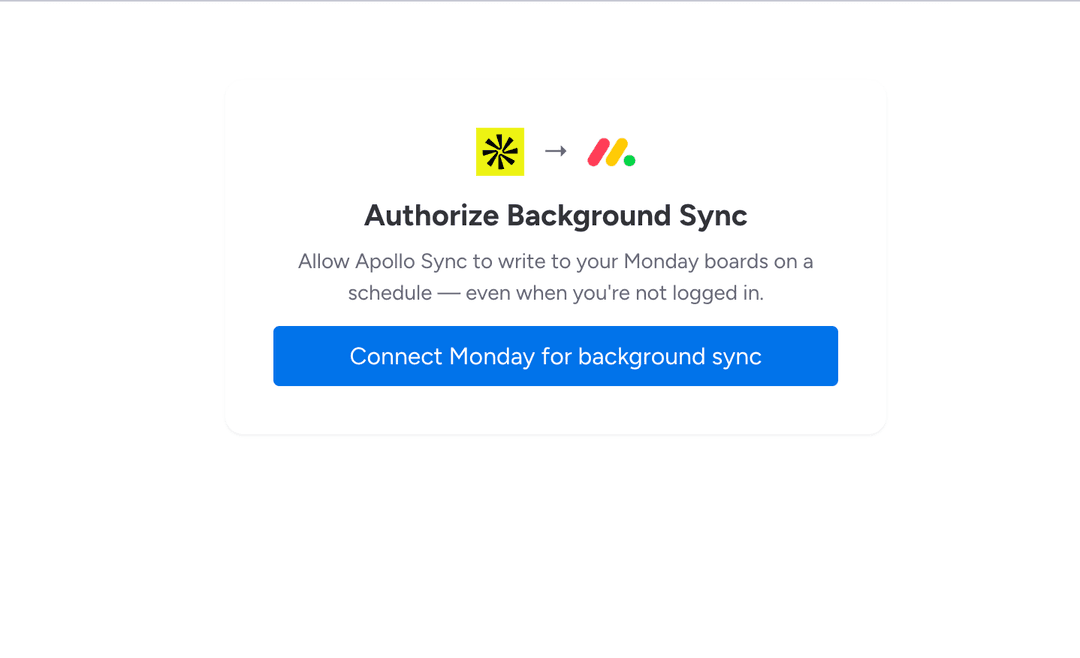
Click "Connect monday.com". A secure OAuth popup opens — authorize the four permissions listed below and the popup closes automatically. Both credentials are stored encrypted in monday code SecureStorage and never leave monday.com's secure runtime.
| OAuth Scope | Purpose |
|---|---|
| me:read | Identify the authorizing account and user during OAuth login and session setup. |
| boards:read | Read your board structure and existing items to check for duplicate contacts before creating new records. |
| boards:write | Create and update contact, company, and deal items in your monday.com boards during sync. |
| users:read | Look up your workspace users by email to resolve Apollo contact/deal owners to the matching monday.com user. |
| webhooks:write | Register webhooks that fire when Apollo contacts reach a configured stage (Growth & Scale plans). |
| notifications:write | Send in-app bell notifications for sync quota warnings and subscription lifecycle events. |
We request only the minimum scopes required. See our privacy policy for full details.
Select a Board and Entity Type
Choose which monday.com board to sync data into, then pick what type of Apollo records it should receive: Contacts, Accounts, or Deals. Each board handles one entity type — create separate board configurations for each type you need.
Map Your Fields
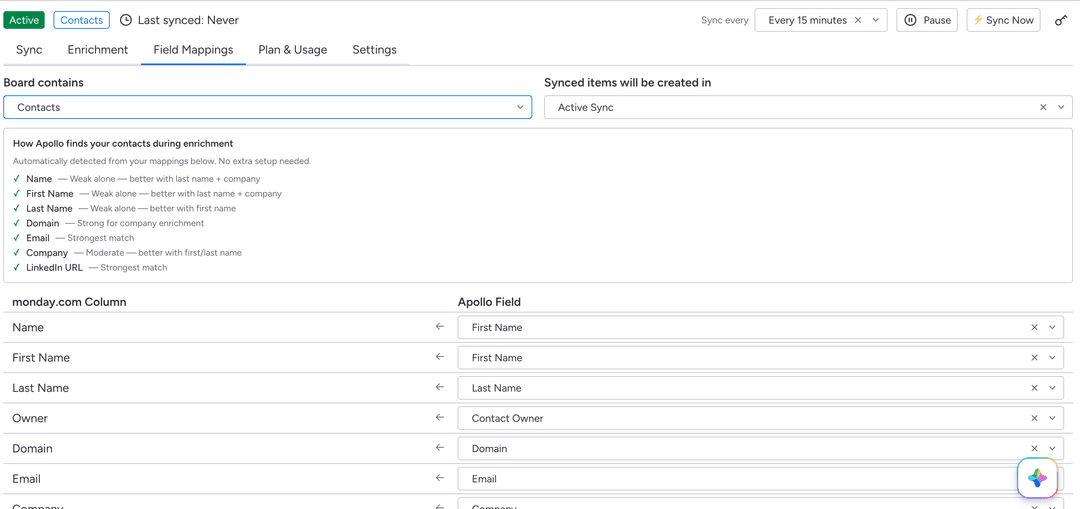
The field mapper shows every Apollo field on the left and every monday.com column on the right. Connect them by selecting matching pairs. For Status and Dropdown columns, you can also map individual option values — for example, Apollo stage "Prospecting" → monday.com Status label "To Contact". Unmapped values leave the field blank rather than overwriting with an unknown value.
Set Filters (Optional)
Filter which Apollo records sync to this board. All active filters combine with AND logic — a record must match every condition to be synced.
| Entity | Available filters |
|---|---|
| Contacts | Stage, label, seniority level (C-Suite / VP / Director / Manager / IC), title keywords (substring match), location (city / state / country), employee count range |
| Accounts | Stage, label, industry, location, revenue range (min / max) |
| Deals | Stage, source, closed/won status, deal amount range (min / max) |
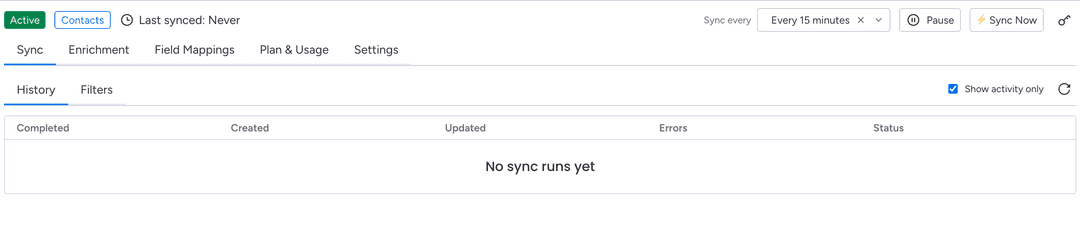
Choose Sync Frequency and Activate
Select how often sync runs. Free plan syncs once daily. Starter and Growth run every 15–60 minutes. Scale runs as fast as every 10 minutes. Click Activate — your first sync starts immediately. View results in the Sync History tab.
Contact enrichment
— manual and automatic
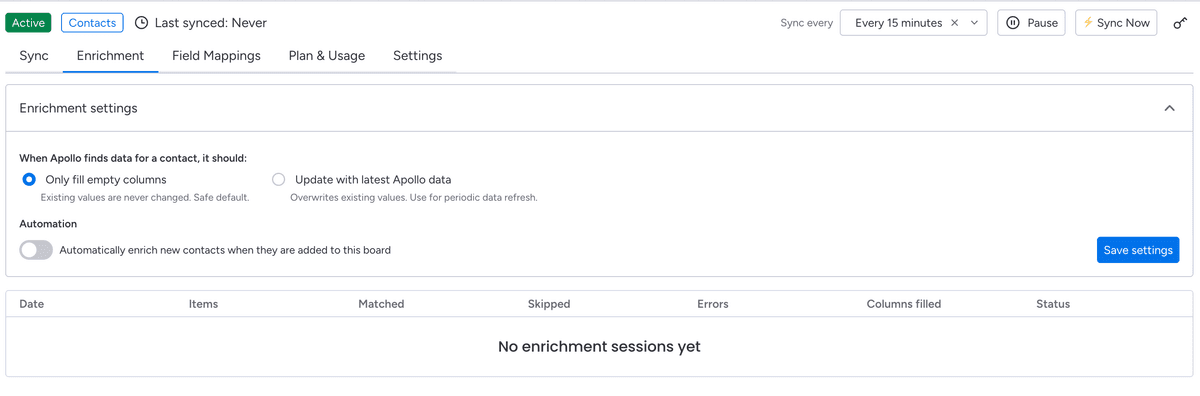
Enrich contacts on-demand or automatically when they enter your board.
Select one or more contacts in your monday.com board, click the Apps button in the bulk action toolbar, then choose Enrich with Apollo.
- 1Select contacts using the checkboxes in your monday.com board.
- 2The Apps button appears in the bulk toolbar at the bottom. Click it.
- 3Choose "Enrich with Apollo" from the app menu.
- 4A preview modal shows which fields will be updated and the exact Apollo credit cost.
- 5Click "Confirm Enrichment" to proceed — credits are charged only at this point.
- 6Results appear in the Enrichment History tab with per-contact matched/skipped/error details.
Prospect
— find new contacts and companies
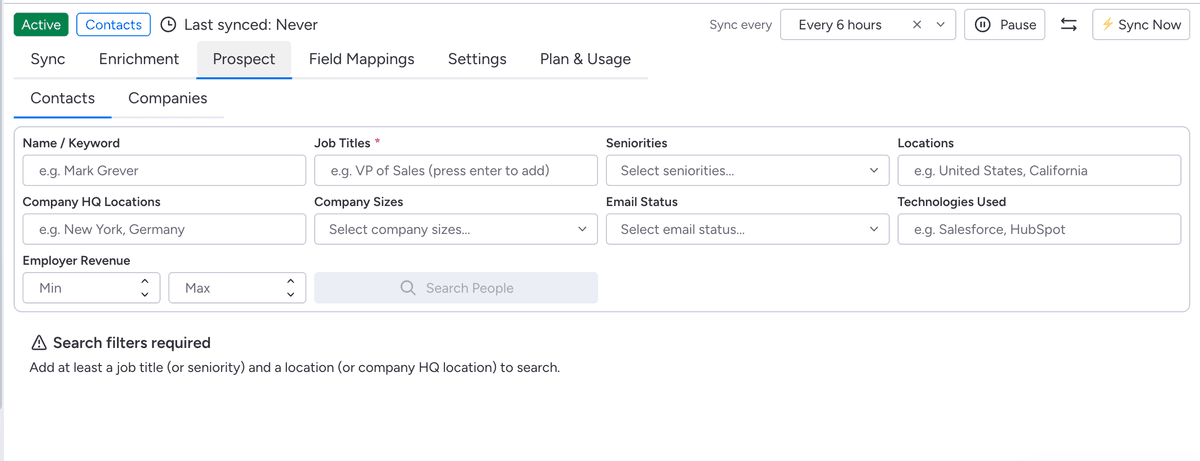
Search Apollo's global database for net-new leads — separate from Sync, which only mirrors records already in your Apollo account.
Open the Prospect tab in the app, then the Contacts sub-tab, to search Apollo's global people database for leads that aren't already in your Apollo account.
- 1Enter at least a job title (or seniority) and a location (or company HQ location) — these are required before you can search.
- 2Optionally narrow further by company size, email status, or technologies used.
- 3Click "Search People." Results are free to browse — you only spend Apollo credits when you open a result to view its full profile.
- 4Click a result to reveal its full contact details, then import it into your monday.com board.
- 5Imported contacts go through your existing field mappings and are deduplicated by email address.
Understanding
sync actions
Your plan includes a monthly limit on sync actions and enrichment actions. These are separate counters — both reset on the 1st of each month at 00:00 UTC.
| Action | Cost |
|---|---|
| Contact created in monday.com | 1 action |
| Contact updated in monday.com | 1 action |
| Account created in monday.com | 1 action |
| Account updated in monday.com | 1 action |
| Deal created in monday.com | 1 action |
| Deal updated in monday.com | 1 action |
| Record skipped (no changes detected) | 0 actions |
| Record skipped (quota reached) | 0 actions |
| Sync error | 0 actions |
| Manual enrichment (per contact) | 1 enrichment action |
| Auto enrichment (per contact) | 1 enrichment action |
Troubleshooting
& common questions
Still need help?
Our team typically replies within a few hours. We can also jump on a quick call to walk through your specific setup.